How to turn a meal plan into a grocery list
General guidance. Check quantities against package sizes in your own shop — a recipe’s “1 cup” is not a unit any supermarket sells. Full disclaimer.
The gap between a meal plan and a grocery list is where most meal planning dies. You have seven recipes and a blank page, and turning one into the other by hand takes twenty minutes of copying, deduplicating and second-guessing what’s already in the cupboard.
The work is mechanical, which means it shouldn’t be yours. Here is what has to happen between a plan and a list, in order — and what goes wrong at each step when it’s done by hand.
Three recipes want onion. A hand-written list says onion three times, or says it once and forgets that one of them wanted two. The hard part is units: half a cup here and two tablespoons there are the same ingredient in different measures, and adding them means converting first.
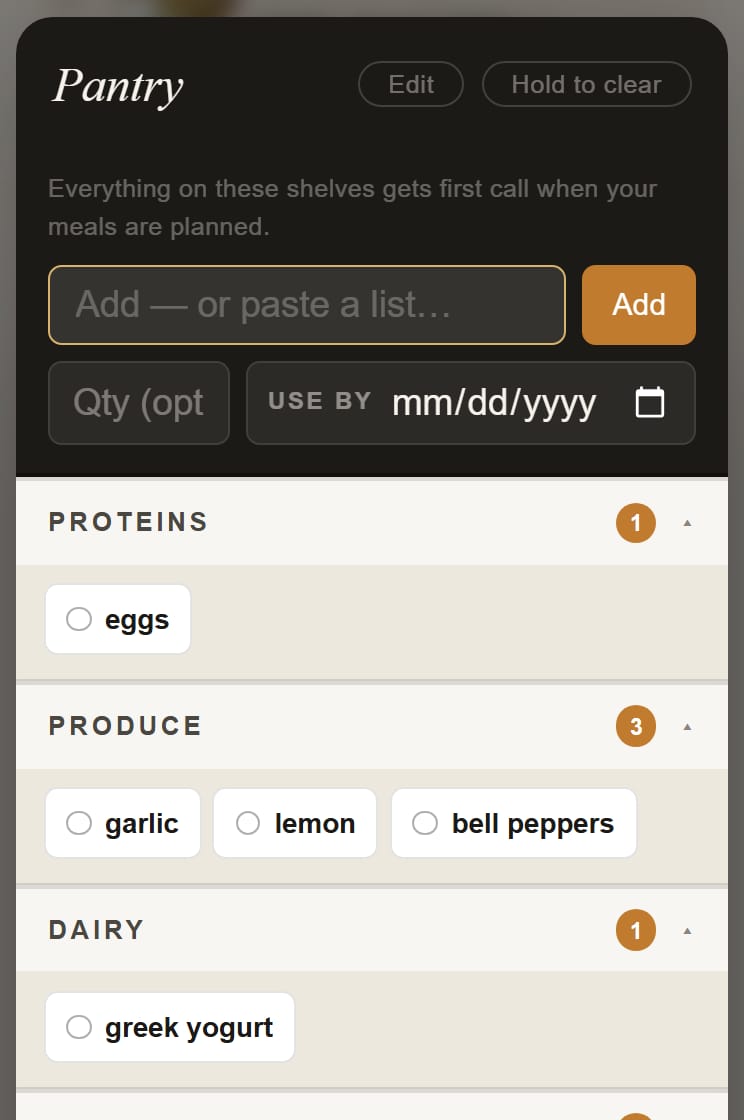
Every unnecessary purchase is money and, more often, waste — the second bottle of fish sauce that joins the first. Checking each line against your cupboard is the most tedious part of the job, so it’s the part that gets skipped. It only has to be done once per staple.
A list in recipe order sends you back and forth across the shop and guarantees you’ll discover the forgotten item two aisles later. A list in aisle order is walked once. Group by food type — produce, protein, dairy, grains, cupboard — which isn’t a perfect map of any shop but is close enough to stop the backtracking.
Lists persist, plans move on, and a week later you’re buying salmon for a Tuesday that has been and gone. It’s silent, and it costs real money. Make the list say when a recipe was for — in words, not colour, because the moment it’s printed or screenshotted the colour is gone.
You need this distinction the moment you’re cooking something you already have the ingredients for: the meal stays in the week, its ingredients come off the list. Deleting the recipe is the wrong tool — it throws away the plan to fix the shopping. What you want is a switch.
The best-organised list is useless if it lives somewhere you can’t reach with a trolley in one hand. It should come out as plain text you can send, print or paste anywhere.
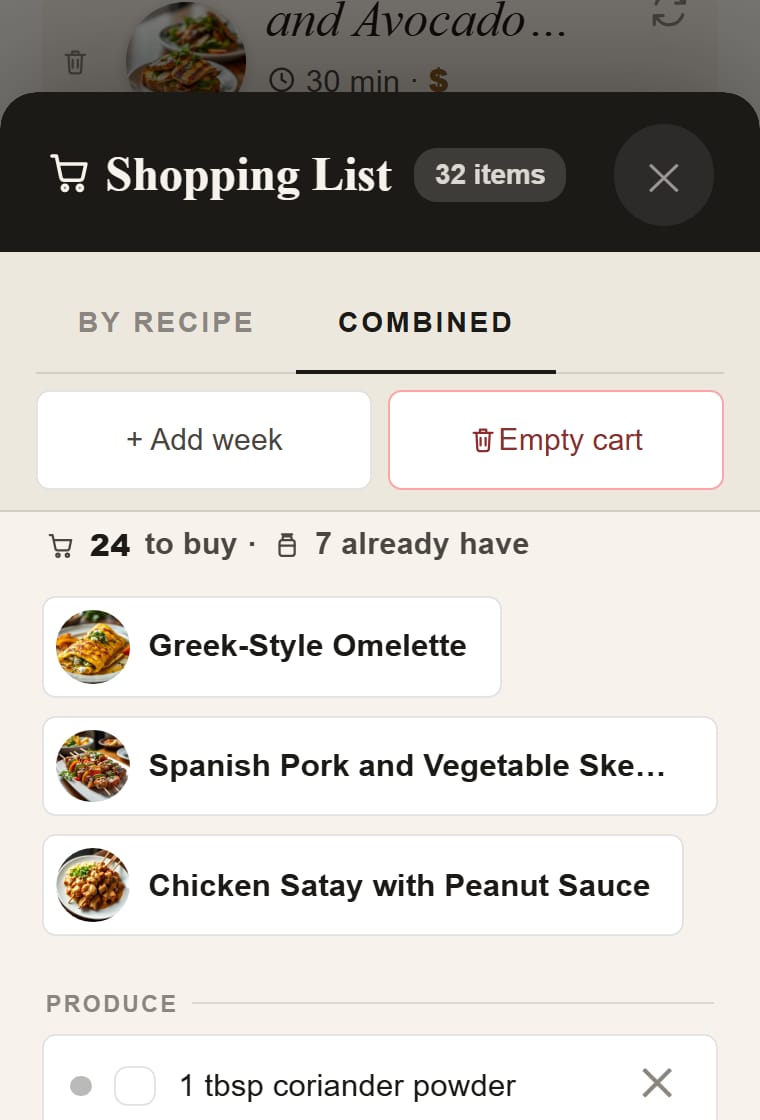
It merges duplicates and converts within a measurement family, while things that genuinely can’t be added — cloves and cans — stay separate rather than forced into a fake total. Kitchen items are subtracted and shown dimmed rather than deleted: “onion” covers red onion, but “rice” doesn’t silently cover rice vinegar. The list groups by aisle on screen and in print, marks past recipes in text, and gives each recipe an on/off switch.
Combine the same ingredient across all the recipes, converting units where you can, subtract anything already in your cupboard, then sort what’s left by aisle.
Keep a standing list of your staples and check against it before you leave. In Plate Planner that’s the kitchen: what you own is subtracted automatically.
By aisle for shopping, by recipe for checking. A recipe-ordered list makes you criss-cross the shop; an aisle-ordered one is walked once.
They should be marked as past — in text rather than colour, so the marking survives printing — and easy to clear in bulk.